Keeping your Nintendo Switch games updated inside the Ryubing emulator is essential for better performance, bug fixes, and accessing extra content or features. If you’re searching for how to install Game updates on Ryubing, or need help with how to install DLC Ryubing properly, this guide will walk you through everything step by step.
Many users face issues when installing Ryubing updates or NSPs, or while completing the Ryubing DLC setup, often due to version mismatches or incorrect installation order.
In this article, you’ll learn the correct method to install NSP updates and DLC files in Ryubing, along with practical tips to avoid common errors. Follow the process carefully to ensure your games run with the latest patches and all additional content enabled.
Understanding the Difference: Game Updates vs. DLC
On Ryubing, game updates fix bugs or improve the existing game, while DLC (downloadable content) adds extra features like new levels, characters, or stories. Both usually come as NSP files, but updates are essential for smooth gameplay, and DLC is optional extra content.
Game updates are patches released by developers to fix problems or make improvements to the base game. Think of them as service packs. Their primary job is to address bugs, patch security vulnerabilities, improve performance and stability, or rebalance gameplay mechanics.
For example, an update might fix a bug that causes a game to crash during a specific level or adjust the power of a certain character to make multiplayer more fair. These updates are cumulative, meaning you only need to install the latest version to get all the fixes from previous ones.
Downloadable content (DLC), on the other hand, adds entirely new content to the game that wasn’t included in the initial release. This is optional content designed to expand the game’s world and replay value. DLC can range from minor additions like new cosmetic outfits and weapons to major expansions that introduce new storylines, playable characters, and entire regions to explore.
Unlike updates, which are about fixing what’s already there, DLC is about adding something new. Ryubing requires you to install these files separately from game updates, using a dedicated “Manage DLC” menu.
To make it clearer, here is a simple breakdown of the key differences:
| Feature | Game Updates | Downloadable Content (DLC) |
|---|---|---|
| Primary Purpose | To fix, patch, and improve the existing game. | To add new, optional content to the game. |
| Common Content | Bug fixes, performance optimization, stability patches. | New levels, characters, story missions, items, costumes. |
| Impact on Game | Essential for a smooth, error-free experience. | Expands gameplay and adds replay value. |
| File Format | Almost always an NSP file. | Almost always an NSP file. |
| Installation | Installed via “Manage Title Updates” in Ryujinx. | Installed via “Manage DLC” in Ryujinx. |
| Necessity | Often required for the game to run properly. | Completely optional for the base game to function. |
Prerequisites for Installing Updates and DLC in Ryubing
Before installing any update or DLC, make sure you have the following:
- Latest Ryubing Version – Install the most recent stable build for better compatibility.
- Base Game Installed – The game must already appear in your Ryubing game list.
- Update File (.NSP) – The correct update file that matches your game’s Title ID and region.
- DLC File (.NSP) – DLC files that belong to the same game and region.
- Prod.keys and Firmware – Required to decrypt and run newer games, updates, and DLC.
Having these ready prevents most installation errors.
Note: Ryubing primarily uses
.NSPupdate files. Older references to.nupkgor.ncafiles are not part of the typical user update process anymore.
How to Install Game Updates on Ryubing Emulator
Game updates usually come in NSP format and are crucial for stability. Follow these steps to apply the latest patches to your games.
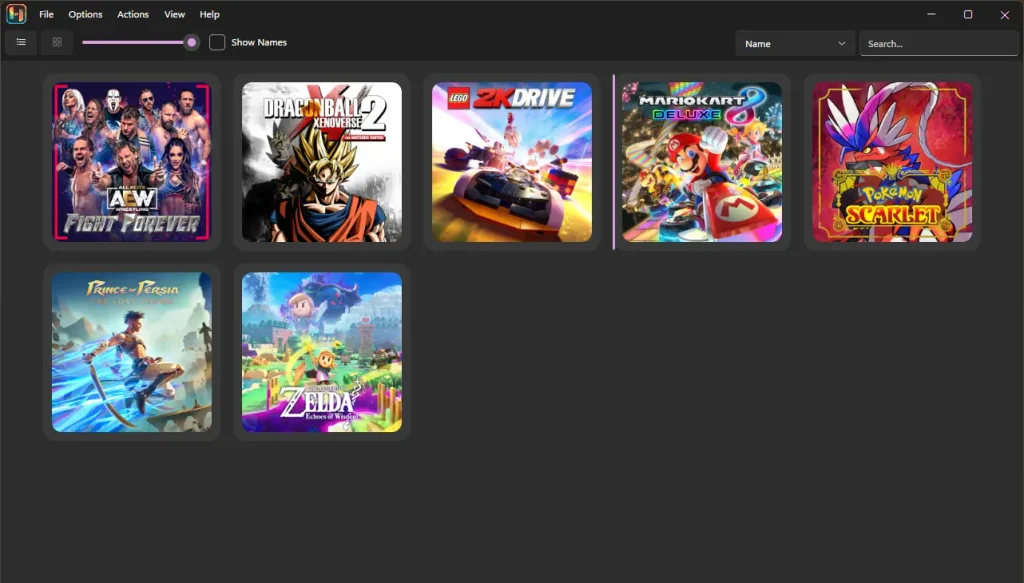
Step 1: Open the Ryubing emulator on your PC. You should see your game library. It is not necessary to launch the game itself; make sure it is visible in the main game list.
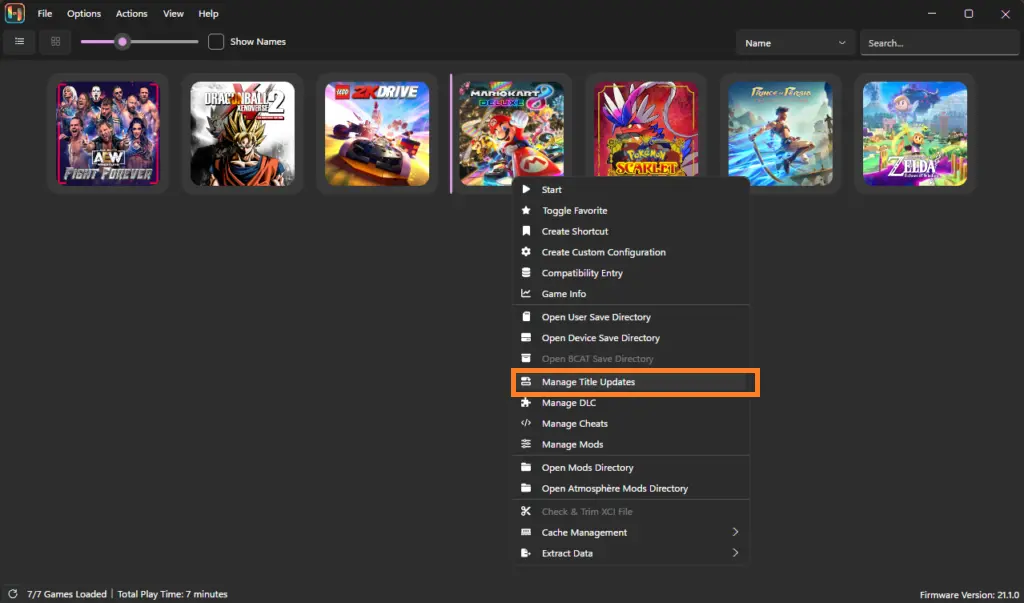
Step 2: Right-click on the specific game you want to update. From the context menu that appears, select “Manage Title Updates”. A new window will pop up specifically for that game.
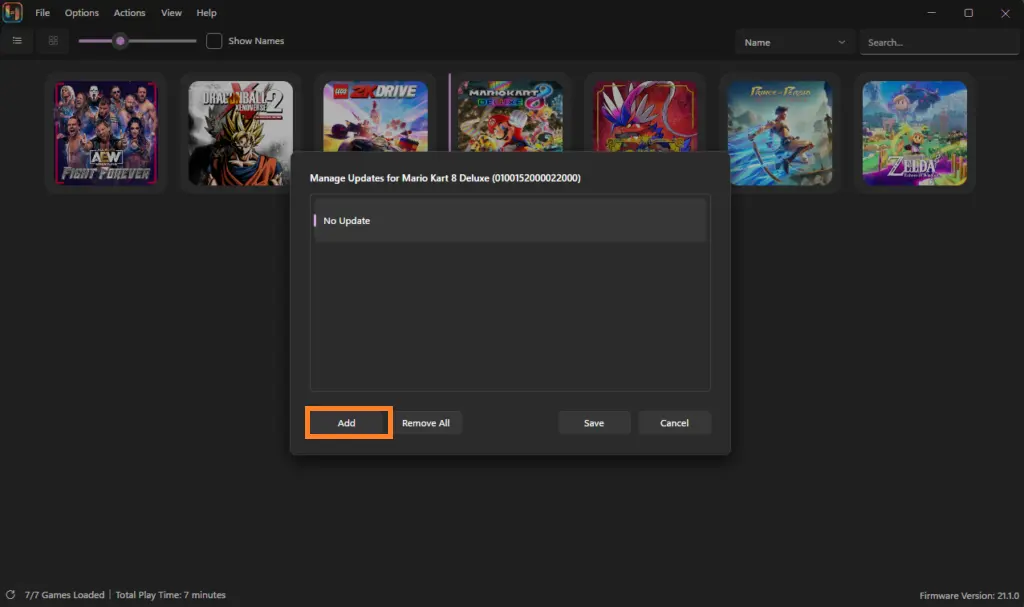
Step 3: Inside the Title Update Manager window, look for the “Add” button at the bottom left. Click it to open a file explorer window. Navigate to the folder where you have saved your update file. Select the file and click “Open”.
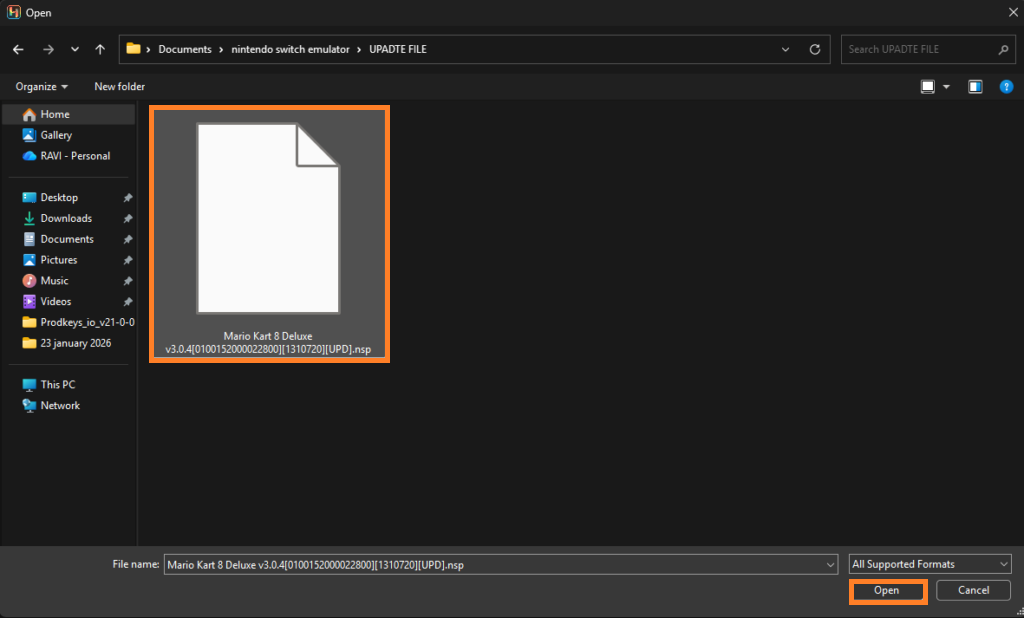
Step 4: The update will now appear in the list. This tells Ryubing to actively use this file. Click “Save” to close the window.
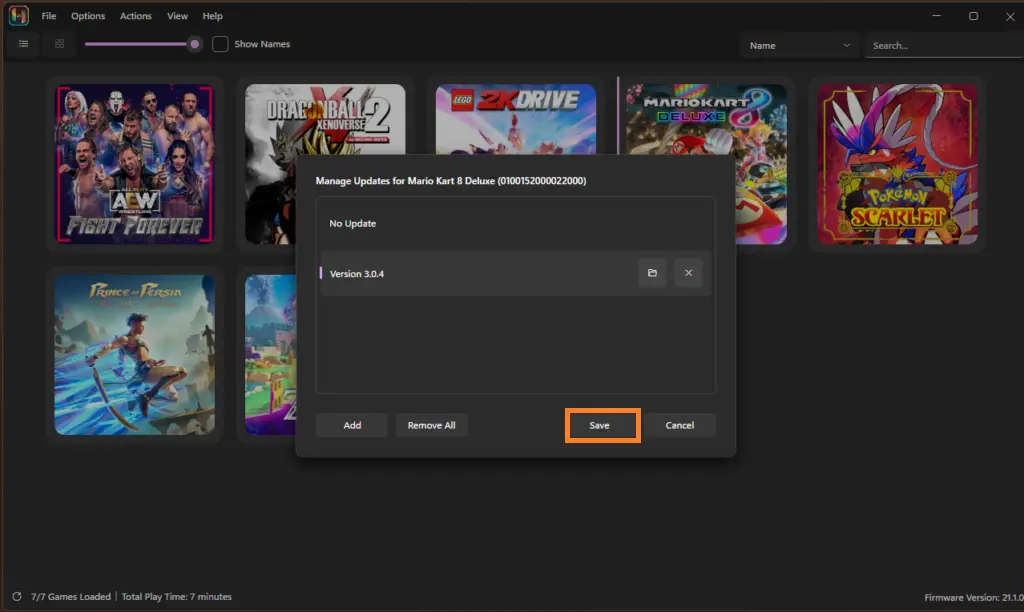
Step 5: Look at the main game list again. The “Version” column for that game should now reflect the new version number (e.g., 1.0.1 or 2.0.0) instead of the default 1.0.0.
How to Install Game DLC on Ryubing Emulator
Adding extra content is just as easy as updating the game. Here is exactly how to install game DLC on the Ryubing emulator to expand your gameplay.
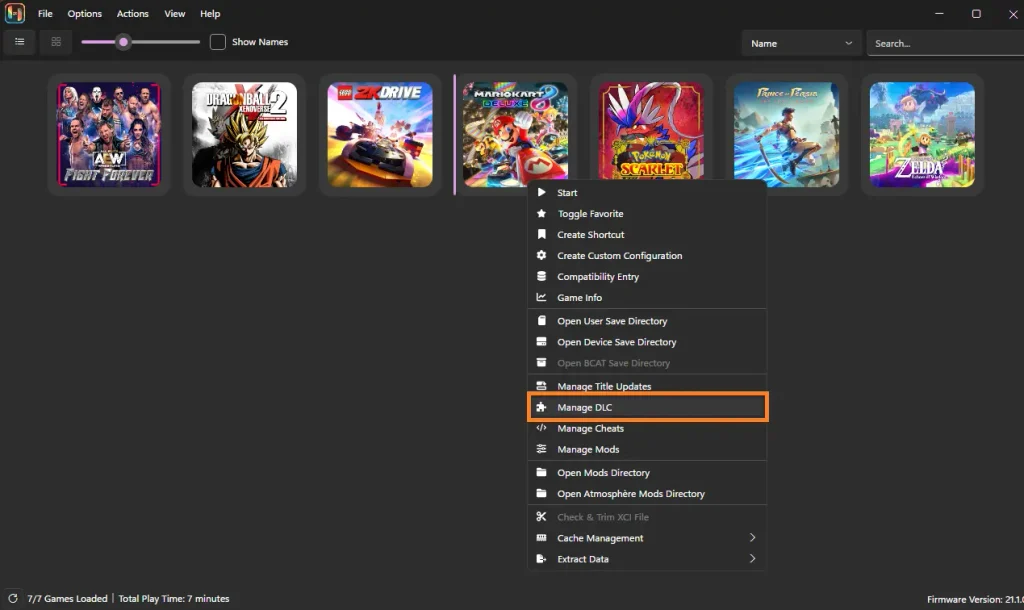
Step 1: Launch Ryubing and find the game you want to expand. Right-click on the game icon in your library and select “Manage DLC”. A window titled “Ryubing – DLC Manager” will open.
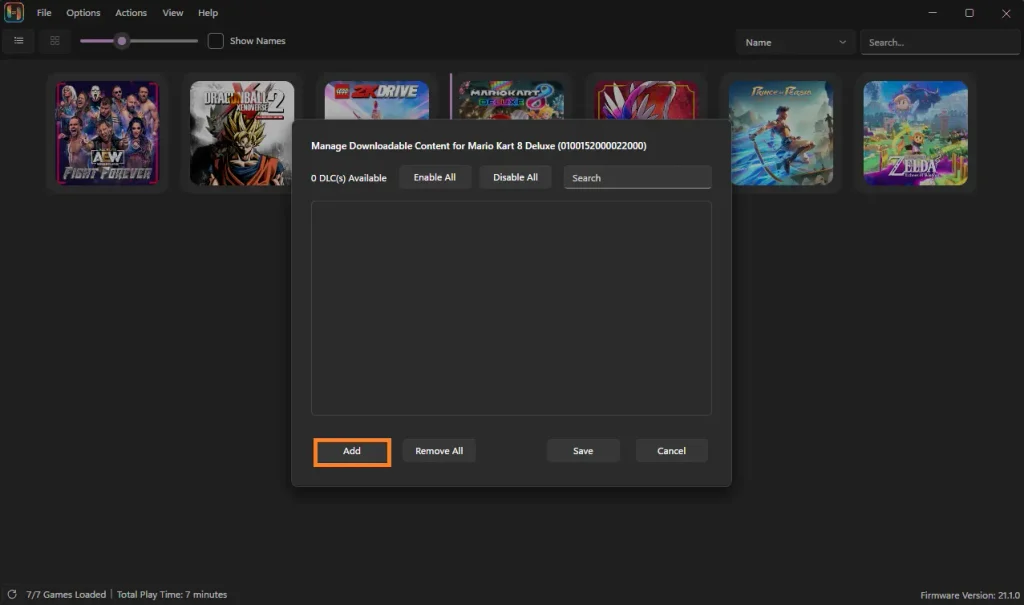
Step 2: Click the “Add” button in the bottom left corner of the DLC Manager window. Browse to the location on your computer where your DLC files are stored. You can select a single one.NSP file or multiple files at once if you have a bundle. Click “Open” to add them.
Step 3: Ryubing will list the files you just added. Check the “Enabled” column to ensure it says “True” or that the checkboxes next to each DLC item are ticked. This confirms the emulator will load the content next time you play.
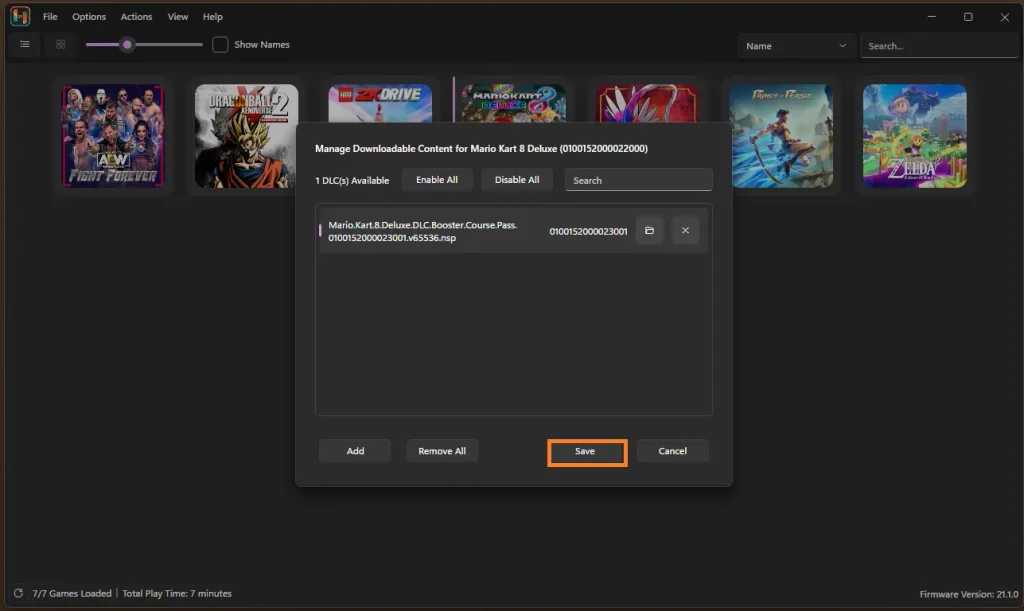
Step 4: Click “Save” to apply the changes. Now, simply launch the game. You should see the new content appear in the game’s menu or receive a notification in-game that new downloadable content has been found.
By following these simple steps, you can ensure your Ryubing library is fully updated and feature-complete, giving you the best possible emulation experience on your PC.
FAQ – Frequently Asked Questions
Q1: Can I install multiple versions of the same update or DLC?
No. Ryubing allows only one active version of a specific update at a time. If you add a newer update version, you should disable or remove the older one. For DLC, each package is unique, but duplicate versions of the same DLC are not supported.
Q2: Do DLC files work across different game regions?
In most cases, no. DLC must match the exact region and Title ID of the base game (for example, US, EU, or JP). A region mismatch is one of the most common reasons DLC fails to install.
Q3: Are my save files affected when I install updates or DLC?
No, installing updates or DLC does not delete or overwrite existing save files. However, some DLC may unlock new content inside your current save, such as new characters or missions.
Q4: Why do I get “The specified file does not contain updates for the selected title”?
This usually means the update or DLC does not match the game’s Title ID or region. Double-check compatibility before trying again.
Q5: Do I need updated prod.keys and firmware to install newer updates?
Yes. Newer game updates often require newer firmware and updated prod.keys. Outdated keys can cause installation failures or game crashes.
1 thought on “Ryubing Emulator – How to update games and install DLC?”